
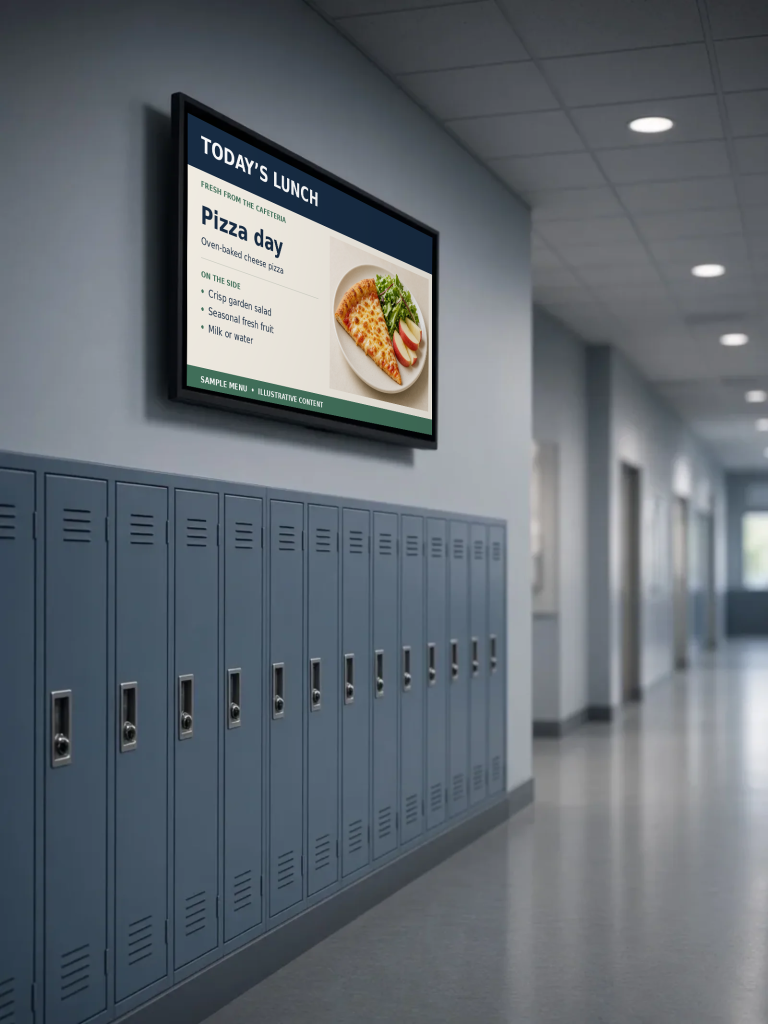
A school digital signage content plan starts with three decisions: who needs each message, where they will see it, and when it should disappear. Give every announcement an owner and an end date, then test it on the actual screen before publishing. You can start with one hallway or cafeteria rather than planning an entire district at once.
This guide is for office staff, communications teams and school leaders planning their first screen schedule. It focuses on the content workflow, not choosing new hardware or replacing your school’s existing communication channels.
In this guide
1. Give each screen a clear job
Walk the building and write down what people need at each location. A cafeteria display might prioritize today’s menu. A main-office screen might help visitors find an event. A gym display might show the next game and its start time.
Avoid sending every announcement to every screen simply because you can. Ask: “What does someone standing here need to know next?” Start with a short list of locations and one main purpose for each.
- Cafeteria: the current menu and a relevant school reminder.
- Main office: welcome information, today’s events and where to get help.
- Gym entrance: the event name, start time and approved ticket information.
2. Create a simple announcement brief
Before designing a slide, collect the facts in one place. A repeatable brief prevents a polished announcement from going live with the wrong date or no clear next step.
- Message: What is happening?
- Audience: Who needs to see it?
- Action: What should the reader do?
- Location: Which displays should carry it?
- Timing: When should it start and stop?
- Owner: Who confirms accuracy and handles changes?
For example, a play announcement could say: “Fall Play — Friday, 7 p.m., auditorium. Buy tickets through the school’s approved event link.” The brief should also record the person who verifies the performance details and removes the message afterward.
3. Make the message readable before making it decorative
Use a short headline, a clear date or time, and one action. Put extra detail on an accessible school webpage rather than shrinking a paragraph to fit a slide. Test from the place people actually stand, including off-center positions and areas affected by glare.
For digital content, the W3C contrast guidance specifies at least 4.5:1 for normal text and 3:1 for large text. Treat that as a useful design reference, not a guarantee that a distant hallway screen is readable or that a whole signage installation meets accessibility requirements.
Do not use color alone to communicate meaning. Label an item “Registration closes Friday” instead of relying on a red box. If you include a QR code, provide a readable short address or another way to get the information. A screen should not be the only place families can find important details.
4. Build a schedule around the school day
Use your school digital signage content plan to map messages to the school day. The following is an illustrative planning schedule, not a required template or an actual school calendar:
- Arrival: today’s date, a welcome message and a timely reminder.
- Before lunch: the approved menu for the correct day and location.
- Before dismissal: after-school activities and relevant event times.
- Before an evening event: venue information and the approved ticket link.
Confirm menu details with the responsible school team. Do not invent nutrition, allergen or dietary information for a graphic. Schedule an expiration for time-sensitive messages so yesterday’s menu or last week’s registration deadline does not remain on screen.
5. Assign review and correction responsibilities
Decide who submits announcements, who approves them and who can correct a mistake. These can be simple staff responsibilities; do not assume your software has a particular approval or permission feature without checking.
Have a backup person who knows the school digital signage content plan and how to make an urgent correction. Keep a small record of approved messages, display locations and removal dates. For student names, photos or achievements, follow your school’s consent and publication policies before sharing anything.
6. Run a one-screen pilot
Publish a small set of routine messages on one screen. Visit it during the school day and ask a colleague to read the message from the normal viewing distance. Check the date, spelling, location, contrast, glare and whether the next action is obvious.
Ask office staff which questions people still bring to the desk. That feedback can reveal missing details, but it is not proof that a screen caused a change in behavior. Adjust the content and schedule before expanding. Keep the school digital signage content plan with the approved message record so the next staff member can see what changed and why.
School digital signage content plan: launch checklist
- Each screen has a defined audience and purpose.
- Every message has an owner, verified details and a removal date.
- Headlines and actions can be read from the expected distance.
- Color is not the only way meaning is communicated.
- Important information is also available through another appropriate channel.
- Menus and student-related content have the necessary school review.
- A colleague has checked the live display, not just the design preview.
- A backup staff member knows how corrections will be handled.
Where Campus Wide fits
Campus Wide Digital Signage for schools supports scheduling announcements, lunch menus and event calendars, with display groups for areas such as the cafeteria, gym and main office. Use your content plan to identify which messages belong in each group.
If your screens promote a play, concert or game, keep the event details consistent with the school’s approved sales page. Campus Wide Event Ticketing is the separate product page for online ticket sales and attendee check-in.
Want to walk through a real school-day schedule? Ask the Campus Wide team for a free demo and bring your screen locations and a few sample announcements.
Sources and further reading
- W3C: Designing for Web Accessibility — contrast, color-independent meaning, headings and media alternatives.
- W3C: Understanding Contrast (Minimum) — text contrast thresholds and their limitations.